Showing posts with label Blogger Tips. Show all posts

Thursday, 23 October 2014

Dynamic Views Button with jquery Effect for Blogger

Dynamic Views Button with jquery Effect for Blogger

In the Name of Allah who is the most Merciful.
I will teach here how to set a button for Changing Blog view to Dynamic View. Smooth jQuery button is added for this. You can set it easily in any template of blogger. It can help you visitors to View your Blog in Dynamic View.
Thanks for visting this. I will Keep updating my blog so don't go anywhere :) 


Add Dynamic Views Button To Blog

  • Go to Design -> Edit HTML
Step 1.Add jQuery Plugin( If your Blog already have a jQuery plugin ignore this Step ),
    • Go to Design->Edit HTML
    • Copy and Paste Below code inside <head> section
      <script src="https://ajax.googleapis.com/ajax/libs/jquery/1.7.1/jquery.min.js"></script>
    Step 2: Add Dynamic view button,
    •  Go to Design-> Page Elements
    • Click on Add Gadget ,Select HTML/Javascript from it
    • Leave Title as blank, Copy the below code inside content section.

      <div class="noopdynamic">
      Click this for change the view to Dynamic views</div>
      <a href="/view">
      <img class="noopdynamicimg" src="https://blogger.googleusercontent.com/img/b/R29vZ2xl/AVvXsEjby33Z8PXzsNdsrGZFaTpeJH0_w8-wJIUZmRl6WwrU_ALGWl7nBc20qI3FTwgKYbtLZxZUnjuZ2zwgDpnXFLn2ROr0YVYR6Du3NOkypxFR6w768r4XjtPoPvXcByrsdF1mzGBpatYbNjY/s1600/google+dynamic+views.jpg" /></a>
          <style type="text/css">
          .noopdynamicimg{bottom: 2%;
              position: fixed;
              right: 1%;}
              .noopdynamic {background: -moz-linear-gradient(top, #aebcbf 0%, #6e7774 50%, #0a0e0a 51%, #0a0809 100%); background: -webkit-linear-gradient(top, #aebcbf 0%, #6e7774 50%, #0a0e0a 51%, #0a0809 100%);
              background-color:#ABABAB;
              border: 2px solid;
              border-radius: 6px 6px 6px 6px;
              bottom: 13%;
              padding: 4px;z-index:999;
              position: fixed;
              right: 5%;
              font:18px Arial;
              text-shadow: 1px 1px 0 #FFFFFF;
              width: 21%;
              box-shadow:0 0 5px;
          }

          </style>

      <script type="text/javascript">
      $(function(){
          $(".noopdynamic").hide(0);
      $(".noopdynamicimg").hover(function(){
          $(".noopdynamic").show("slow");
      },function(){$(".noopdynamic").hide("medium");
      });});
      </script>
      • Then Save it.
      • That's all,you are done..
      I hope you enjoyed this article,if so please share n like us.

      Rainbow animation Link Widget for Blogger

      Rainbow animation Link Widget for Blogger

      In the Name Of Allah who is the most Kind and Merciful, I am posting here a new trick of Rainbow Animated Link. By applying this trick, your link will start changing color just like rainbow on Mouse Hover. Method is given below ! 
      Don't Forget To Share n Comment !


      Add Rainbow Animation Hover Effect

      Note:Remember that Back up your Template First.

      • Sign In to you Blogger Account.
      • Go to Design->Edit HTML
      • Find <head> section and Place the below code inside it.

      <script type='text/javascript'>
      //<![CDATA[
      var rate = 20;
      if (document.getElementById)
      window.onerror=new Function("return true")
      var objActive;  // The object which event occured in
      var act = 0;    // Flag during the action
      var elmH = 0;   // Hue
      var elmS = 128; // Saturation
      var elmV = 255; // Value
      var clrOrg;     // A color before the change
      var TimerID;    // Timer ID
      if (document.all) {
      document.onmouseover = doRainbowAnchor;
      document.onmouseout = stopRainbowAnchor;
      }
      else if (document.getElementById) {
      document.captureEvents(Event.MOUSEOVER | Event.MOUSEOUT);
      document.onmouseover = Mozilla_doRainbowAnchor;
      document.onmouseout = Mozilla_stopRainbowAnchor;
      }
      function doRainbow(obj)
      {
      if (act == 0) {
      act = 1;
      if (obj)
      objActive = obj;
      else
      objActive = event.srcElement;
      clrOrg = objActive.style.color;
      TimerID = setInterval("ChangeColor()",100);
      }
      }
      function stopRainbow()
      {
      if (act) {
      objActive.style.color = clrOrg;
      clearInterval(TimerID);
      act = 0;
      }
      }
      function doRainbowAnchor()
      {
      if (act == 0) {
      var obj = event.srcElement;
      while (obj.tagName != 'A' && obj.tagName != 'BODY') {
      obj = obj.parentElement;
      if (obj.tagName == 'A' || obj.tagName == 'BODY')
      break;
      }
      if (obj.tagName == 'A' && obj.href != '') {
      objActive = obj;
      act = 1;
      clrOrg = objActive.style.color;
      TimerID = setInterval("ChangeColor()",100);
      }
      }
      }
      function stopRainbowAnchor()
      {
      if (act) {
      if (objActive.tagName == 'A') {
      objActive.style.color = clrOrg;
      clearInterval(TimerID);
      act = 0;
      }
      }
      }
      function Mozilla_doRainbowAnchor(e)
      {
      if (act == 0) {
      obj = e.target;
      while (obj.nodeName != 'A' && obj.nodeName != 'BODY') {
      obj = obj.parentNode;
      if (obj.nodeName == 'A' || obj.nodeName == 'BODY')
      break;
      }
      if (obj.nodeName == 'A' && obj.href != '') {
      objActive = obj;
      act = 1;
      clrOrg = obj.style.color;
      TimerID = setInterval("ChangeColor()",100);
      }
      }
      }
      function Mozilla_stopRainbowAnchor(e)
      {
      if (act) {
      if (objActive.nodeName == 'A') {
      objActive.style.color = clrOrg;
      clearInterval(TimerID);
      act = 0;
      }
      }
      }
      function ChangeColor()
      {
      objActive.style.color = makeColor();
      }
      function makeColor()
      {
      // Don't you think Color Gamut to look like Rainbow?
      // HSVtoRGB
      if (elmS == 0) {
      elmR = elmV;    elmG = elmV;    elmB = elmV;
      }
      else {
      t1 = elmV;
      t2 = (255 - elmS) * elmV / 255;
      t3 = elmH % 60;
      t3 = (t1 - t2) * t3 / 60;
      if (elmH < 60) {
      elmR = t1;  elmB = t2;  elmG = t2 + t3;
      }
      else if (elmH < 120) {
      elmG = t1;  elmB = t2;  elmR = t1 - t3;
      }
      else if (elmH < 180) {
      elmG = t1;  elmR = t2;  elmB = t2 + t3;
      }
      else if (elmH < 240) {
      elmB = t1;  elmR = t2;  elmG = t1 - t3;
      }
      else if (elmH < 300) {
      elmB = t1;  elmG = t2;  elmR = t2 + t3;
      }
      else if (elmH < 360) {
      elmR = t1;  elmG = t2;  elmB = t1 - t3;
      }
      else {
      elmR = 0;   elmG = 0;   elmB = 0;
      }
      }
      elmR = Math.floor(elmR).toString(16);
      elmG = Math.floor(elmG).toString(16);
      elmB = Math.floor(elmB).toString(16);
      if (elmR.length == 1)    elmR = "0" + elmR;
      if (elmG.length == 1)    elmG = "0" + elmG;
      if (elmB.length == 1)    elmB = "0" + elmB;
      elmH = elmH + rate;
      if (elmH >= 360)
      elmH = 0;
      return '#' + elmR + elmG + elmB;
      }
      //]]>
      </script>
      • Save It and Enjoy. . . !

      Smooth Jquery Back to Top Buttons Generator

      Smooth Jquery Back to Top Buttons Generator

      jquery scroll to top widget generator blogger

      15+ Scroll To top buttons Widget Generator

      Select Button

      General Options
      Button Size :
      Position :
      Include jQuery Plugin(Do you want to add it?) :
        

      Copyright © 2012 by Valsaraj @ NetOops Blog.All Rights Reserved

      Wooden Subscription Widget for blogger

      Wooden Subscription Widget for blogger

      Wooden Subscription Widget for blogger

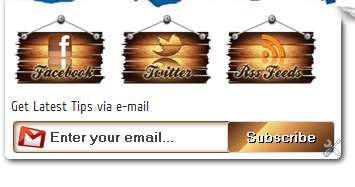
      In the Name of Allah who is the Most Kind and Merciful, In this Post I will teach you how to add Wooden Subscription Gadget to your blogger as shown in picture. A new Email Subscription box is also added with this widget. Enjoy and Don't Forget to Share and Comment !


      Subscription Box With Fully Wooden Theme

      • Go to Blogger Dashboard
      • Go to Layout 
      • Select Add a Gadget
      • You can type title any
      • And Copy the following code in the content.

       Important: If you don't want Mouse over effect of Images in the Subscription box, please delete the RED highlighted code,. If you want then leave it there. 
        <style type="text/css">
         /* Delete form Here*/  

        img.beintouch:hover {

            background: none repeat scroll 0 0 #D6D6D6;

            border-radius: 16px 16px 16px 16px;

            box-shadow: 0 0 10px #565656;
        }
        /* Delete to Here*/
        .emailtext {
            background: url("https://blogger.googleusercontent.com/img/b/R29vZ2xl/AVvXsEhdrp_aGVRb64L7DGzMJbMgnvt2LyZtYTJn4JQeIn6n0_fwiPbVt3-KZXXVysRUpKX9m-tgbBnpVzLSczBe9oPZyBtdwkf3_Ars1EsQLZJha7bYwW2C_HRh11eVTFBknxiBjeyFmTgPjeg/s1600/mailbox.png") no-repeat scroll 4px center transparent;
            border: 1px solid #7E4E27;
            border-radius: 4px 4px 4px 4px;
            box-shadow: 1px 1px 4px #7E4E27 inset;
            color: #444444;
            font-weight: bold;
            margin-left: 2px;
            padding: 7px 15px 7px 35px;
            text-decoration: none;
            width: 176px;
        }
        .ebutton {
            background: -moz-linear-gradient(-45deg, #3C1F0E 0%, #D28A47 30%, #F9E183 30%, #D28A47 55%, #3C1F0E 100%) repeat scroll 0 0 transparent;
            border: 1px solid #D3D3D3;
            border-radius: 4px 4px 4px 4px;
            color: #FFFFFF;
            cursor: pointer;
            font-weight: bold;
            margin-left: -18px;
            margin-top: 5px;
            padding: 6px 15px;
            text-decoration: none;
            text-shadow: 1px 1px 0 #000000;
        }
        </style>
        <table align="center" width="317px" cellspacing="0px" cellpadding="1px"><tbody><tr><td><a target="_blank" rel="nofollow" href="http://www.facebook.com/l0nelyprincex64"><img src="https://blogger.googleusercontent.com/img/b/R29vZ2xl/AVvXsEjSviI-kx4WWQ0pM_iawolX4M7qrnkWaWthuVYPOcu5Xp19zx6nrvREKwI0f_wVkpfKt63Rlm03KyemNVM4uz-AQS_dyP9MoZkA5YSBQi6_B9tEFTNU6W3junc95KtzIkTbeppwxp7cMvU/s1600/woden+board+facebook_netoops.png" class="beintouch" /></a></td><td><a target="_blank" href="http://twitter.com//" rel="nofollow"><img src="https://blogger.googleusercontent.com/img/b/R29vZ2xl/AVvXsEgxXA1g_CexaGOkhlAAUCg9_DjMLSoOafNOqbFox_Cvj_keXcMfFrM6tUPPxbCYQlTJyNTQQVggLLbgiLEfvAbCIlqGpaeP94k4tohzeqZIR43Pzdk1f8odoLfghsFDg02kgVWMvI3jHSw/s1600/woden+board+twitter_netoops.png" class="beintouch" /></a></td><td><a target="_blank" href="http://feeds.feedburner.com/" rel="nofollow"><img src="https://blogger.googleusercontent.com/img/b/R29vZ2xl/AVvXsEhWMevXZEBGvFaauMi4lTwtUCEYQXt8yXPYhGbDlNFpgGFp1lq0kIksYdB8hQ9-eMnClPbjkxxM2tEpktV_PDGOyUAk7c9uDTP__L1zi1-TW_OTkLJvufIk5PdGGhKodq-Vrqp1fZGL8BU/s1600/woden+board+RSS1_netoops.png" class="beintouch" /></a><a href="http://netoopsblog.blogspot.com"></a></td></tr></tbody></table>
        <div>Get Latest Tips via e-mail</div>
        <form target="popupwindow" style="margin: 0pt;" onsubmit="window.open('http://feedburner.google.com/fb/a/mailverify?uri=
        ITGooglepk', 'popupwindow', 'scrollbars=yes,width=550,height=520');return true" method="post" class="emailform" action="http://feedburner.google.com/fb/a/mailverify">
        <input type="hidden" value="NetOopsBloggerTricks" name="uri" />
        <input type="hidden" value="en_US" name="loc" />
        <input type="text" value="Enter your email..." onfocus="if (this.value == &quot;Enter your email...&quot;) {this.value = &quot;&quot;}" onblur="if (this.value == &quot;&quot;) {this.value = &quot;Enter your email...&quot;;}" name="email" class="emailtext" />
        <input type="submit" value="Subscribe" title="" class="ebutton" alt="" />
        </form>


        Change the BLUE highlighted code with FACEBOOK PAGE URL, TWTTER, FEED URL, FEED ID respectively. 

        Change Blogger Post A Comment Style


        Change Blogger Post A Comment Style

        In The Name of Allah who is the Most Kind and Merciful

        As we all know that Comments in blogger or website is the one and only best way to stay connected with our blog or website visitors. When you open a post, you see "Post a comment" in the end of the every post in your blog. Here, I will teach you how to change "Post a Comment" text to an awesome style which attract the blog visitors so much. I hope you will like this and share it :)
        Steps :
        • Sign In  to Blogger Dashboard
        • Go to Template -> Edit HTML
        • Search (Ctrl+F) for the code marked Bold
        <a expr:id='data:widget.instanceId + &quot;_comment-editor-toggle-link&quot;' href='javascript:void(0)'><data:postCommentMsg/></a>
        •  Search the next <data:postCommentMsg/> ,that code looks like the following
        <h4 id='comment-post-message'><data:postCommentMsg/></h4>
        • replace  <data:postCommentMsg/> with the image code
        • Select the code of image you want from the following

        Style 1

        <img src="http://i.imgur.com/Qv18EaT.gif"/>

        Style 2

        <img src="http://i.imgur.com/hR5AoQv.jpg"/>

        Style 3

        <img src="http://i.imgur.com/542TClt.jpg"/>

        Style 4

        <img src="http://i.imgur.com/2RqqdBN.jpg"/>

        Style 5

        <img src="http://i.imgur.com/h0oIkzC.jpg"/>

        Style 6

        <img src="http://i.imgur.com/YbPOTnI.jpg"/>

        Style 7

        <img src="http://i.imgur.com/wRUQ2JN.jpg"/>

        Style 8

        <img src="http://i.imgur.com/b7gXQLd.jpg"/>

        Style 9

        <img src="http://i.imgur.com/TXqb5vI.jpg"/>


        Style 10

        <img src="http://i.imgur.com/Wu2M9sv.jpg/>

        Style 11

        <img src="http://i.imgur.com/rP7bUnN.jpg"/>


        Style 12

        <img src="http://i.imgur.com/ZcVbJRa.jpg"/>

        • Save Template

        Enjoy 

        Add Yahoo Smileys on Blogger Comments

        Add Yahoo Smileys on Blogger Comments

        Add Yahoo Smileys on Blogger Comments

        Yahoo smileys for Blogger Threaded Comments
        Start with the name of Allah who is the Most Kind and Merciful, In this post, I will teach you how to add yahoo smileys in your blogger threaded comments. This was scripted by an Indonesian Blogger Kang Ismet and I think he did a very good job for us. This Blogger trick works with new blogger interface only. Enjoy this trick and Don't Forget to Share and comment !


        Steps :

        • Go to Blogger Account
        • Go to Template -> Edit HTML [click Proceed]

        Add CSS Code

        • Find ]]></b:skin>  
        img.bhacksmly {
            height: auto !important;
            vertical-align: middle !important;
            width: auto !important;
            border:0px !important;
        }

        Add Javascript Code

        • Find </body> and copy the below code just above it.
        <script src='https://netoopscodes.googlecode.com/svn/branches/Js files/ysmiley threaded comments-min.js' type='text/javascript'/>
        •   Save the template
          Save Template

        Add HTML Code

        • Check Expand Widget Templates
        • Find <div class='post-footer-line post-footer-line-3'>
        • Find the next </b:includable> and copy the code above it
        Example
         </div>
        .
        Place code here 


        </b:includable>

        • Copy the below code above </b:includable>
        <b:if cond='data:blog.pageType == &quot;item&quot;'>
        <div class='netoopsblogysmile' id='ysmile' style='
        background: -moz-linear-gradient(top, #e4f5fc 0%, #bfe8f9 50%, #9fd8ef 51%, #2ab0ed 100%);background: -webkit-gradient(linear, left top, left bottom, color-stop(0%,#e4f5fc), color-stop(50%,#bfe8f9), color-stop(51%,#9fd8ef), color-stop(100%,#2ab0ed));background: -webkit-linear-gradient(top, #e4f5fc 0%,#bfe8f9 50%,#9fd8ef 51%,#2ab0ed 100%);background: -o-linear-gradient(top, #e4f5fc 0%,#bfe8f9 50%,#9fd8ef 51%,#2ab0ed 100%);background: -ms-linear-gradient(top, #e4f5fc 0%,#bfe8f9 50%,#9fd8ef 51%,#2ab0ed 100%);background: linear-gradient(top, #e4f5fc 0%,#bfe8f9 50%,#9fd8ef 51%,#2ab0ed 100%);border-radius: 3px;width:100%; padding:10px; height:65px;'>
        <img alt='' class='bhacksmly' src='http://l.yimg.com/us.yimg.com/i/mesg/emoticons7/1.gif'/> :)
        <img alt='' class='bhacksmly' src='http://l.yimg.com/us.yimg.com/i/mesg/emoticons7/2.gif'/> :(
        <img alt='' class='bhacksmly' src='http://l.yimg.com/us.yimg.com/i/mesg/emoticons7/3.gif'/> ;)
        <img alt='' class='bhacksmly' src='http://l.yimg.com/us.yimg.com/i/mesg/emoticons7/4.gif'/> :D
        <img alt='' class='bhacksmly' src='http://l.yimg.com/us.yimg.com/i/mesg/emoticons7/7.gif'/> :-/
        <img alt='' class='bhacksmly' src='http://l.yimg.com/us.yimg.com/i/mesg/emoticons7/8.gif'/> :x
        <img alt='' class='bhacksmly' src='http://l.yimg.com/us.yimg.com/i/mesg/emoticons7/10.gif'/> :P
        <img alt='' class='bhacksmly' src='http://l.yimg.com/us.yimg.com/i/mesg/emoticons7/11.gif'/> :-*
        <img alt='' class='bhacksmly' src='http://l.yimg.com/us.yimg.com/i/mesg/emoticons7/12.gif'/> =((
        <img alt='' class='bhacksmly' src='http://l.yimg.com/us.yimg.com/i/mesg/emoticons7/13.gif'/> :-O
        <img alt='' class='bhacksmly' src='http://l.yimg.com/us.yimg.com/i/mesg/emoticons7/14.gif'/> X(
        <img alt='' class='bhacksmly' src='http://l.yimg.com/us.yimg.com/i/mesg/emoticons7/15.gif'/> :7
        <img alt='' class='bhacksmly' src='http://l.yimg.com/us.yimg.com/i/mesg/emoticons7/16.gif'/> B-)
        <img alt='' class='bhacksmly' src='http://l.yimg.com/us.yimg.com/i/mesg/emoticons7/18.gif'/> #:-S
        <img alt='' class='bhacksmly' src='http://l.yimg.com/us.yimg.com/i/mesg/emoticons7/20.gif'/> :((
        <img alt='' class='bhacksmly' src='http://l.yimg.com/us.yimg.com/i/mesg/emoticons7/21.gif'/> :))
        <img alt='' class='bhacksmly' src='http://l.yimg.com/us.yimg.com/i/mesg/emoticons7/24.gif'/> =))
        <img alt='' class='bhacksmly' src='http://l.yimg.com/us.yimg.com/i/mesg/emoticons7/26.gif'/> :-B
        <img alt='' class='bhacksmly' src='http://l.yimg.com/us.yimg.com/i/mesg/emoticons7/101.gif'/> :-c
        <img alt='' class='bhacksmly' src='http://l.yimg.com/us.yimg.com/i/mesg/emoticons7/100.gif'/> :)]
        <img alt='' class='bhacksmly' src='http://l.yimg.com/us.yimg.com/i/mesg/emoticons7/102.gif'/> ~X(
        <img alt='' class='bhacksmly' src='http://l.yimg.com/us.yimg.com/i/mesg/emoticons7/103.gif'/> :-h
        <img alt='' class='bhacksmly' src='http://l.yimg.com/us.yimg.com/i/mesg/emoticons7/28.gif'/> I-)
        <img alt='' class='bhacksmly' src='http://l.yimg.com/us.yimg.com/i/mesg/emoticons7/41.gif'/> =D7
        <img alt='' class='bhacksmly' src='http://l.yimg.com/us.yimg.com/i/mesg/emoticons7/43.gif'/> @-)
        <img alt='' class='bhacksmly' src='http://l.yimg.com/us.yimg.com/i/mesg/emoticons7/45.gif'/> :-w
        <img alt='' class='bhacksmly' src='http://l.yimg.com/us.yimg.com/i/mesg/emoticons7/47.gif'/> 7:P
        <img alt='' class='bhacksmly' src='http://l.yimg.com/us.yimg.com/i/mesg/emoticons7/48.gif'/> 2):)
        <img alt='' class='bhacksmly' src='http://l.yimg.com/us.yimg.com/i/mesg/emoticons7/110.gif'/> :!!
        <img alt='' class='bhacksmly' src='http://l.yimg.com/us.yimg.com/i/mesg/emoticons7/111.gif'/> \m/
        <img alt='' class='bhacksmly' src='http://l.yimg.com/us.yimg.com/i/mesg/emoticons7/112.gif'/> :-q
        <img alt='' class='bhacksmly' src='http://l.yimg.com/us.yimg.com/i/mesg/emoticons7/113.gif'/> :-bd
        <img alt='' class='bhacksmly' src='http://l.yimg.com/us.yimg.com/i/mesg/emoticons7/114.gif'/> ^#(^
        </div><a href="http://netoopsblog.blogspot.com"></a></b:if>

        • Save the Template
        • That's all